.svg)
Most practice management platforms will provide you an external calendar URL, which allows you to view your schedule in external calendars such as iCal, Google Calendar and Outlook. Here are the steps to take to add your appointments from other calendars to your HealthBank calendar:
- Log into the platform you are wanting to export your appointments from.
- Find the External Calendar URL and copy the link.
- Log into your HealthBank profile and click on Settings. Under Settings, click on Calendars.
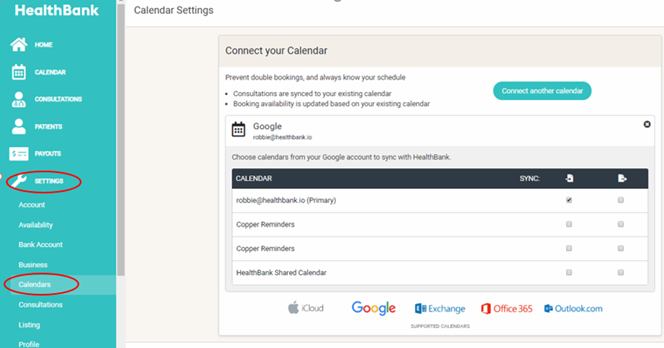
4. Under Connect your Calendar, click on Connect another calendar button.
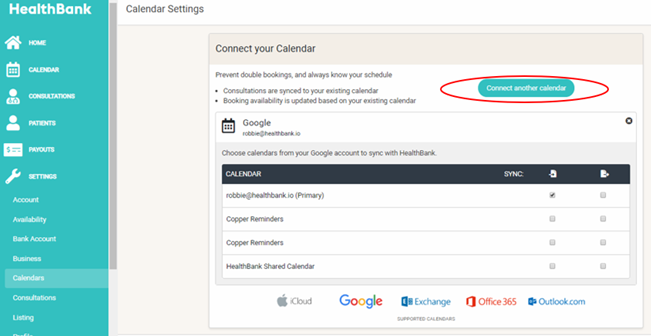
5. A Select Provider pop up box will show. Click on Other Calendar.
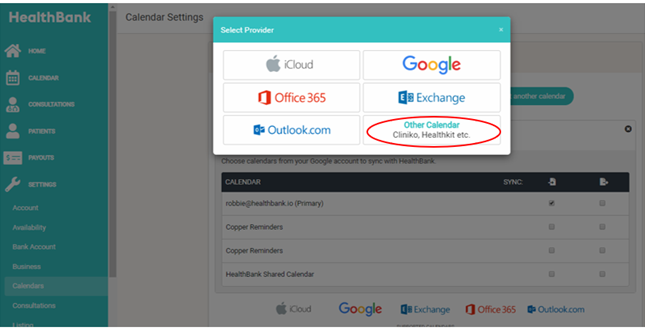
6. An Other Calendars pop up box will show. Paste the external calendar URL here and click on Add Calendar.
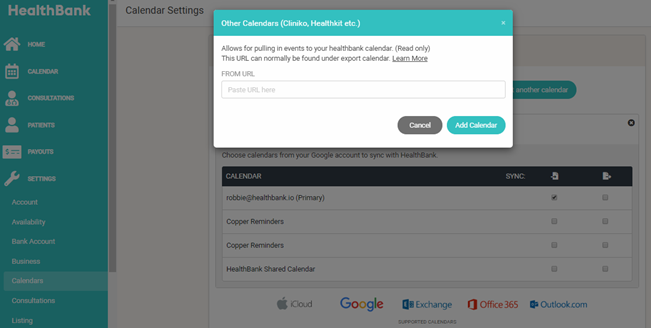
7. Under the Calendar URL tick the SYNC box to sync your external calendar.
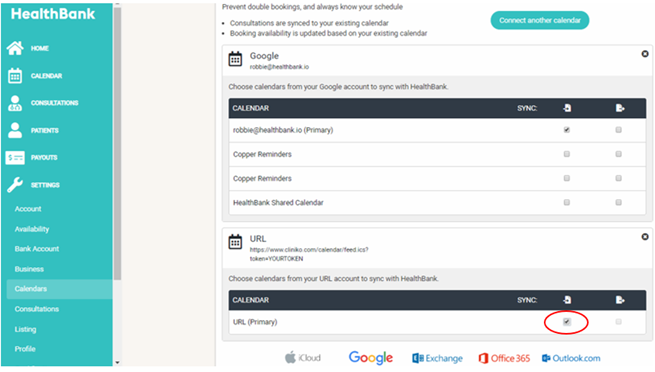
Once you have synced the URL, return back to your HealthBank calendar and you should be able to see your imported appointments.
TROUBLESHOOT: If you cannot see your appointments, try refreshing the page.